
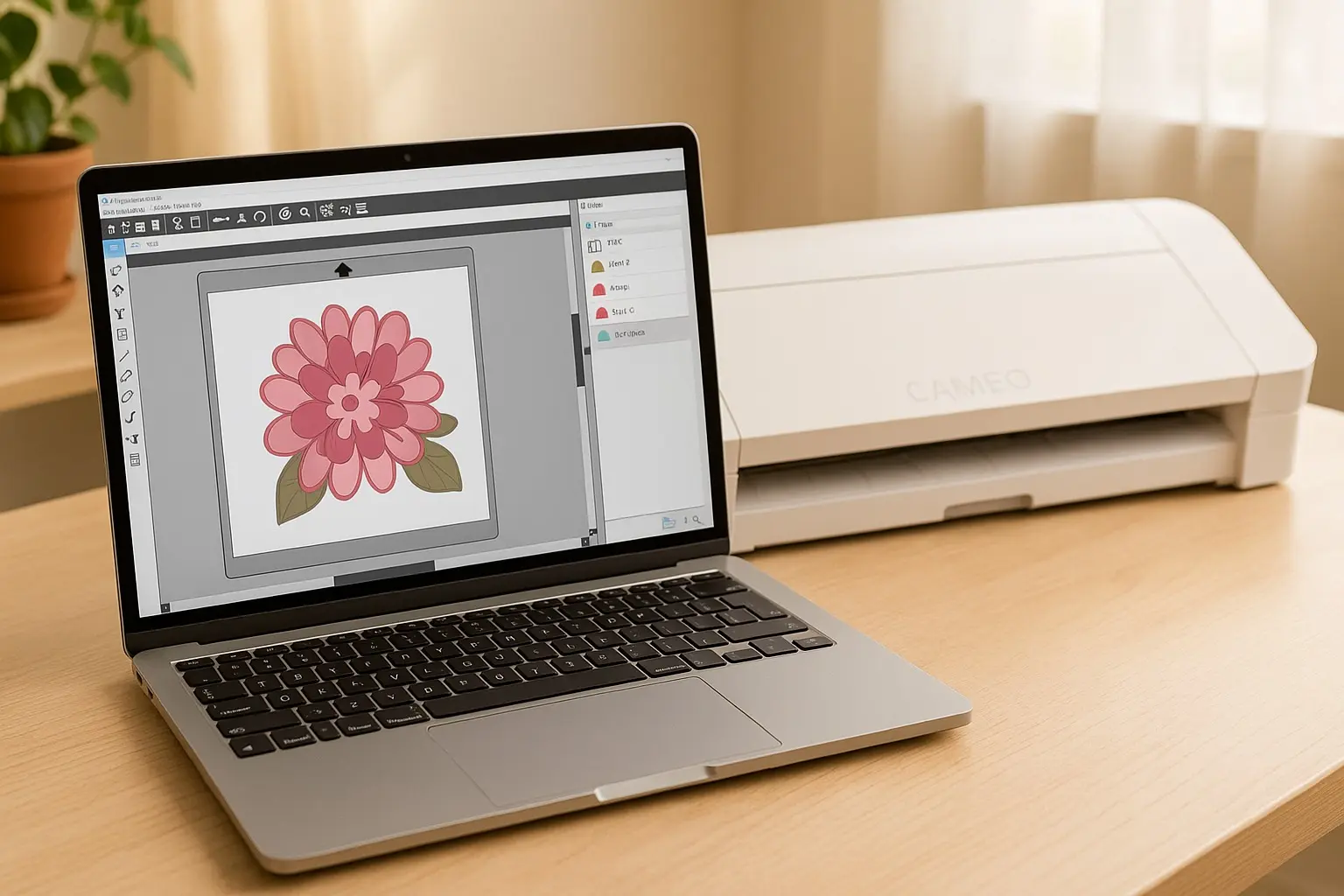
How to Fix SVG Layers Not Showing in Silhouette Studio: Step-by-Step Guide
There’s nothing more frustrating for crafting enthusiasts than finding that your carefully crafted SVG file doesn’t display its layers correctly in Silhouette Studio. This common issue can throw your project off course, but fear not. With this guide, you’ll gain the insight and steps necessary to solve this headache and ensure your designs come out as beautifully as planned.
Understanding SVG Layers and Silhouette Studio Compatibility
SVG, or Scalable Vector Graphics, is a file format that’s incredibly popular among crafters for its layering capabilities. These layers are essential for creating complex, multi-dimensional designs that can be meticulously cut on machines like the Silhouette Cameo.
However, Silhouette Studio sometimes struggles with these files, especially when dealing with sophisticated designs or older software versions. SVG layers can vanish due to complex grouping, incompatible software versions, or intricate design details that the program can’t interpret properly.
Imagine importing a beautifully detailed floral SVG into Silhouette Studio, only to find that some petals or leaves are missing or merged undesirably. These quirks are part of the software’s technical limitations, but knowing how to navigate them can save the day.
Step-by-Step Fixes for Missing or Invisible SVG Layers
- Pre-import Checklist: Before importing, check that your SVG file is flattened correctly if needed for layering. Complex designs may need simplification.
- Best Practices for Importing: Ensure that your Silhouette Studio is updated to the latest version. Go to File > Import > Import to Library to preserve layers.
- Troubleshooting Tips:
- Use ‘Ungroup’ to manipulate layers separately.
- Arrange layers manually if automatic layering fails.
- Go through each layer in the Silhouette Layer Panel to ensure visibility.
- Advanced Fixes: If problems persist, use free tools like Inkscape to edit the SVG. Convert any text to paths and avoid gradients which may not render well.
- Consider Alternatives: Sometimes, converting the file to DXF, which handles design layers differently, can be a solution when SVGs fail.
By following these steps, you can handle the majority of layer visibility issues proficiently.
Crafting Tips & Creative Workarounds for Layered SVG Projects
When designing SVGs for Silhouette, less is sometimes more. Simplify your designs where possible to avoid overwhelming the software. Always test cut new designs on scrap material first to confirm layer visibility.
Experienced crafters often swap tricky layering for creative tricks, such as using single-color cuts that layer physically instead of digitally. Such strategies can sidestep the problems of invisible layers entirely.
Community Insight: “Always test on a smaller scale before committing to a full project. Tiny errors on the screen can become big issues in crafting!” – Jenna D., crafting blogger.
FAQ: SVG Layer Issues in Silhouette Studio
Q: Why do some SVG layers disappear during import? A: This could be due to grouped elements or unsupported features such as complex gradients.
Q: Is the Designer Edition necessary for full SVG functionality? A: While the Designer Edition offers enhanced capabilities, most layering issues are fixable in the Basic Edition.
Q: How can I recover lost layers? A: Check if elements are set to “No Cut” or try re-importing after ungrouping or editing the SVG.
Quick Tips for Flawless SVG Import
- Regularly update Silhouette Studio to enjoy the best SVG compatibility.
- Use simple color schemes and avoid overuse of gradients in your designs.
- Practice with free SVG files from resources such as our Learn Hub to master the import process.
Related Topics for SVG Crafters
Interested in further improving your crafting game? Consider upgrading your Silhouette Studio for better SVG functionality and explore interesting project ideas.
For those interested in the business side of crafts, check out our Business & License page for useful information.
Unleash your creativity with well-prepared SVG files! Dive into our multitude of crafting ideas and discover resources to improve your craft at our Learn Hub.